
A visual and auditory calendar for people who need more support than a traditional calendar provides.
Day2Day helps caregivers create a personalized daily schedule while giving the person they support a clear way to see and hear what is happening, what comes next, and what they have already completed.
For iPhone and iPad.

Who is Day2Day Calendar for?
Day2Day is for people who benefit from additional visual or auditory support to understand and follow their day.
It can be used with children, teenagers, and adults.
Day2Day can be adapted to the individual person and the way they communicate and understand information.
Comparing apps? Our guide, How to Choose a Visual Schedule App, covers what to look for in any visual schedule app.
Some people may benefit because they have difficulty understanding spoken instructions alone. Others may benefit from:
- Seeing a sequence of activities
- Knowing what comes next
- Keeping track of time
- Preparing for changes
- Having a consistent way to understand their day
Set up the day. Then let Day2Day help guide them.
You set up and manage the calendar. The person you support uses it to see and hear what is happening and what comes next.
-
1You create their schedule
Build the day they actually have
Create a schedule based on the person’s actual day. Preset activities make getting started easier, and you can personalize every activity to fit the individual.
- Add an event from the + button: create a new event with your own picture, name and times, or choose from ready-made events.
- Choose a picture from your camera, your photo gallery, the pictures that come with the app, or an image search.
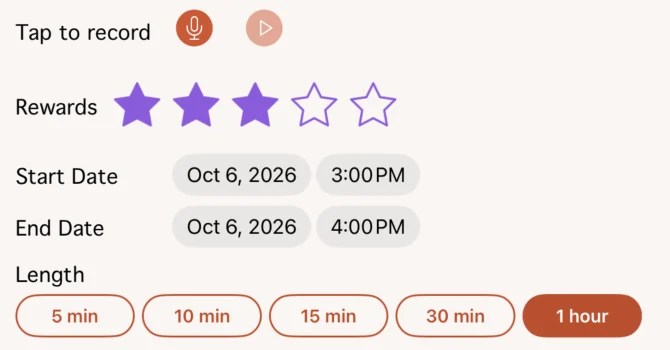
- Record your own voice for an activity, or let Day2Day read its name aloud.
- Set the time and length, with quick buttons from 5 minutes to 1 hour.
- Repeat it every day, on school days, on weekends, on the days you pick, every other week or every month.
Add an event Choose a picture
 Voice, stars, time and length
 Repeat options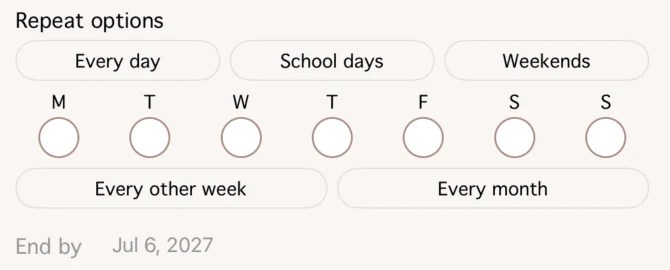
-
2They see and hear what’s next
A picture, a name and a voice for every activity
The person you support can see their activities and hear them read aloud. Every event includes a timer, helping make time more concrete and predictable.
- Tap the picture to hear the activity.
- The current activity is outlined in green, so it stands out from what comes next.
- The timer ring counts down the time left in the activity.
The current activity, with its timer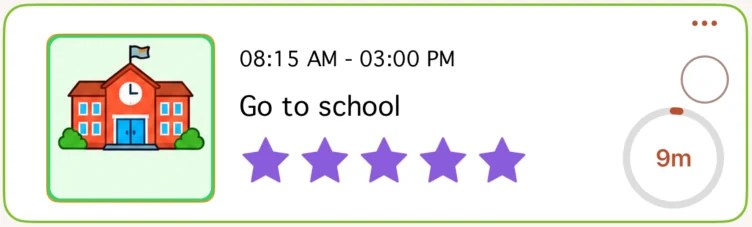
-
3They complete the day one activity at a time
See what’s done and what’s still ahead
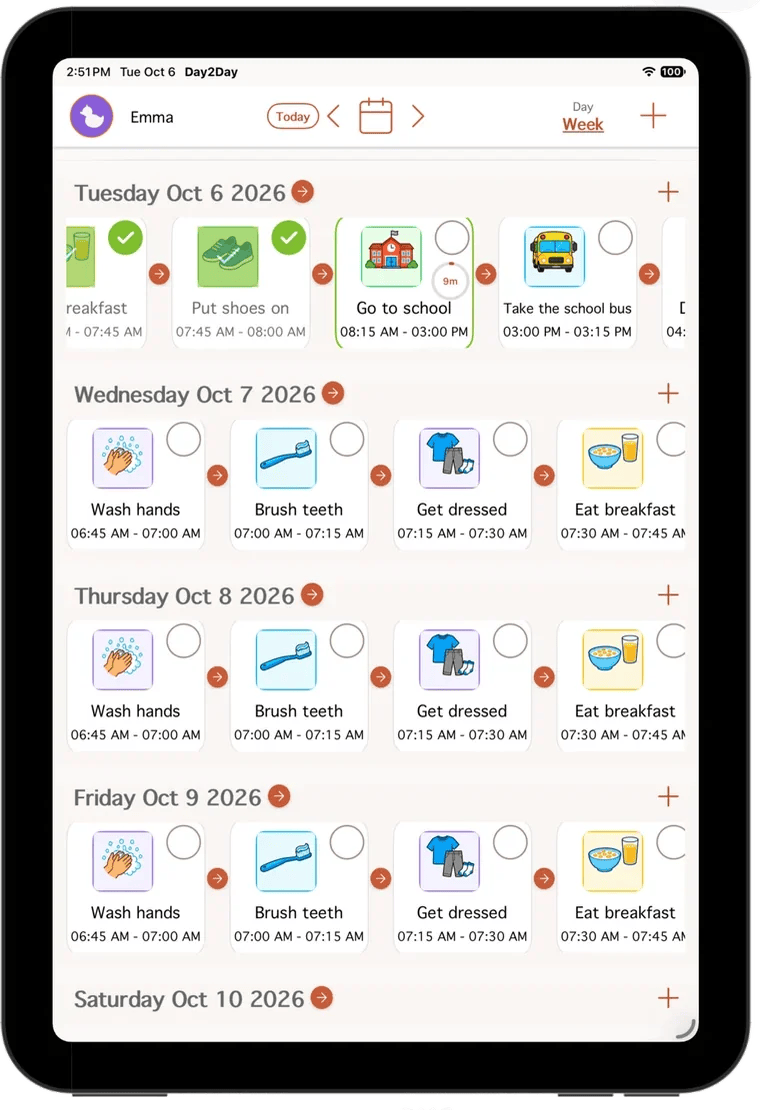
As activities are completed, they move into the completed portion of the schedule. This lets the person see what they’ve already done and what is still ahead.
- Tap the circle to mark an activity as complete. It gets a green check.
- Finished activities shrink into compact rows at the top of the day, so what’s ahead stays in view.
Completed activities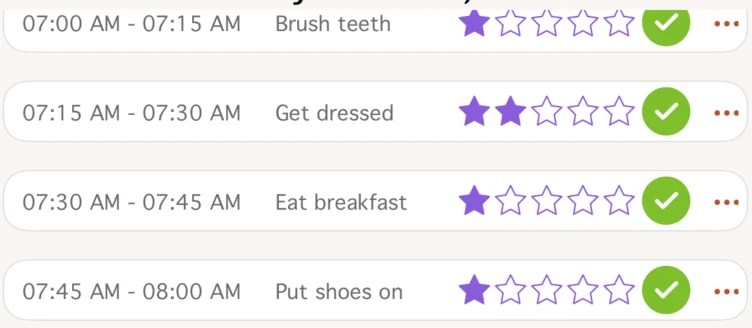
-
4They can work toward rewards
Stars they earn, rewards you choose
You can assign between 0 and 5 stars to an activity. When the activity is completed, the person earns the stars you assigned. Stars can then be used toward rewards you choose.
- Set stars on each activity when you create it.
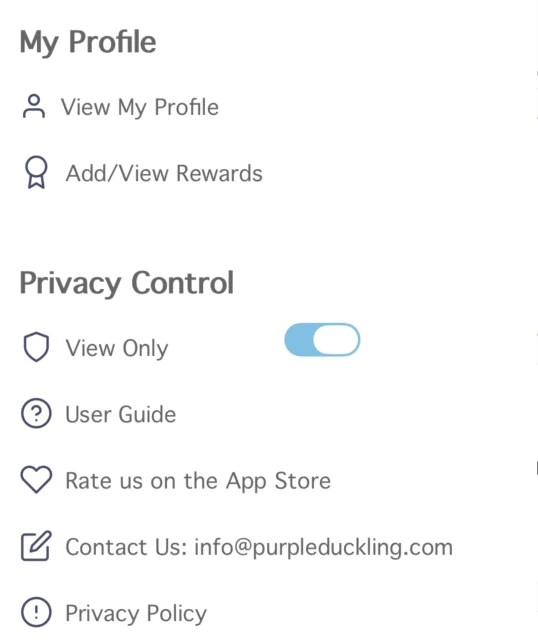
- Add and view rewards from the menu, with pictures such as screen time, a bike ride or a trip to the park.

You decide who can change the schedule
Day2Day includes View-Only mode, which allows the caregiver to control whether the person using the calendar can make changes to the schedule.
Turn it on from the menu, and the edit controls stay out of the way.
Start with the activities that are already part of their day.
Day2Day includes preset activities to make creating a schedule easier. Tick the ones you want, adjust their times and stars, choose how often they repeat, and add them all at once.
You can then customize the schedule to fit the individual person.
 Go to the bathroom
 Wash hands
 Brush teeth
 Get dressed
 Eat breakfast
 Go to school
 Go to work
 Eat lunch
 Do homework
 Take a break
 Take medicine
 Shower
 Go to bed
More than a traditional calendar.
A traditional calendar can tell you when something is scheduled. Day2Day is designed to provide more support around the activity itself.
A time and some words. That’s all.
Activities can include:
- A picture
- A name
- Spoken audio
- A timer
- A star value
- Completion status
This gives the person using the calendar multiple ways to understand what is happening and what comes next.
What do we know about visual schedules?
Visual schedules and other visual supports have been studied as ways of helping people understand sequences of activities, follow routines, and participate more independently.
Research has examined visual activity schedules with autistic children, teenagers, and adults, although the strength and scope of the evidence varies depending on the age, setting, skill being taught, and type of visual support used.
Research on digital activity schedules is also emerging, but the evidence base is smaller than the broader research on visual supports.
Day2Day is designed with these established ideas about visual support in mind. It is not a medical or therapeutic treatment, and research on visual schedules should not be interpreted as evidence that any particular app will work for every person.
Learn more about the research
These independent sources review research on visual supports. They do not evaluate Day2Day.
What is Day2Day Calendar?
Day2Day Calendar is a visual and auditory calendar that provides more support than a traditional calendar. It gives caregivers a way to create a personalized schedule for the person they support, while giving that person a visual and auditory way to understand what is happening and what comes next.
Who is Day2Day Calendar for?
Day2Day Calendar is for people who benefit from additional visual or auditory support to understand and follow their day. It can be used with children, teenagers, and adults, and is not limited to people with a particular diagnosis.
Who sets up the calendar?
The caregiver sets up and manages the calendar. You can create the schedule, add activities, personalize them, assign stars, and choose rewards. The person you support then uses the calendar to see and hear what is happening and what comes next.
Do I have to create every activity myself?
No. Day2Day includes preset activities to make setup easier. Presets include common activities such as going to the bathroom, washing hands, brushing teeth, getting dressed, eating meals, going to school or work, doing homework, taking a break, taking medicine, showering, and going to bed. You can then customize the schedule for the individual person.
Can I use my own pictures?
Yes. Day2Day allows you to personalize activities with pictures so that the visual support can be meaningful and recognizable to the person using the calendar.
Does every activity have a timer?
Yes. Every event in Day2Day includes a timer.
What happens when an activity is finished?
When an activity is completed, it moves into the completed portion of the schedule. This allows the person using the calendar to see what they have already done and what is still ahead.
How do the stars work?
You can assign between 0 and 5 stars to each activity. When the person completes the activity, they earn the stars you assigned. The stars can then be used toward rewards that you choose.
Can the person using the calendar change the schedule?
Day2Day includes View-Only mode, which allows the caregiver to control whether the person using the calendar can make changes to the schedule.
Does Day2Day replace a caregiver?
No. Day2Day is a tool for caregivers. It helps provide consistent visual and auditory support, but it does not replace the support, supervision, or judgment of a caregiver.
Ready to set up their day?
Day2Day Calendar is available on the App Store for iPhone and iPad.
Understanding the day is one thing. Learning how to do each part is another.
Day2Day Calendar helps someone understand and follow their day. Day2Day Independence, coming soon, helps them learn how to complete an activity one step at a time.
Explore Day2Day Independence Step 1
 Step 2
 Step 3